

Attach Block Storage to Instance
Block Storage volumes can be attached to Instances to add additional storage capacity. This is useful for separating data from the OS disk or expanding storage.
Prerequisites
- An existing Block Storage volume in your account
- The volume must be in the same region as the Instance
- The volume must be available (not attached to another Instance)
Attaching via Control Panel
1. Navigate to Block Storage Tab
- Go to Instances → Virtual Machines.
- Click on the Instance name.
- Select the Block Storage tab.
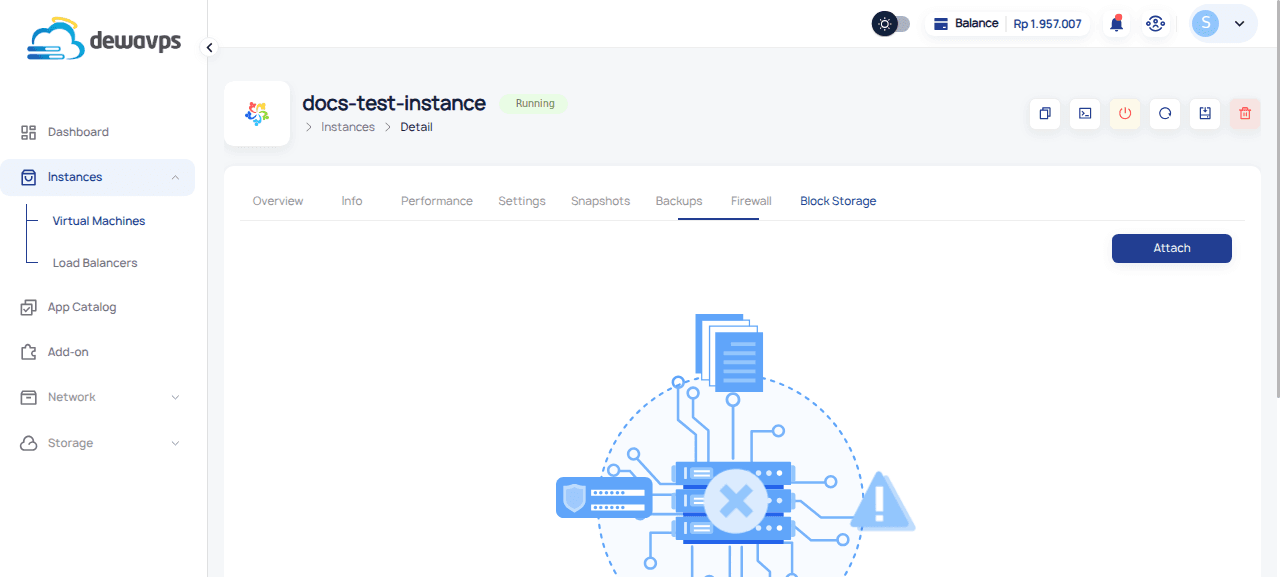
2. Click Attach
Click the Attach button.
3. Select Volume
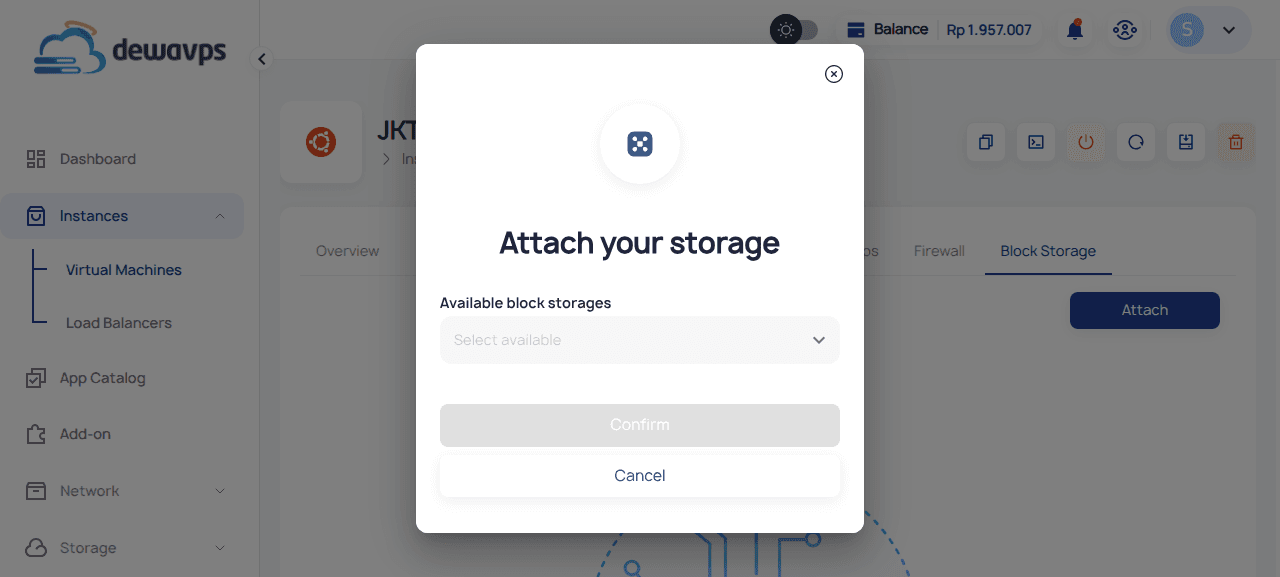
A dropdown shows all available Block Storage volumes in the same region.
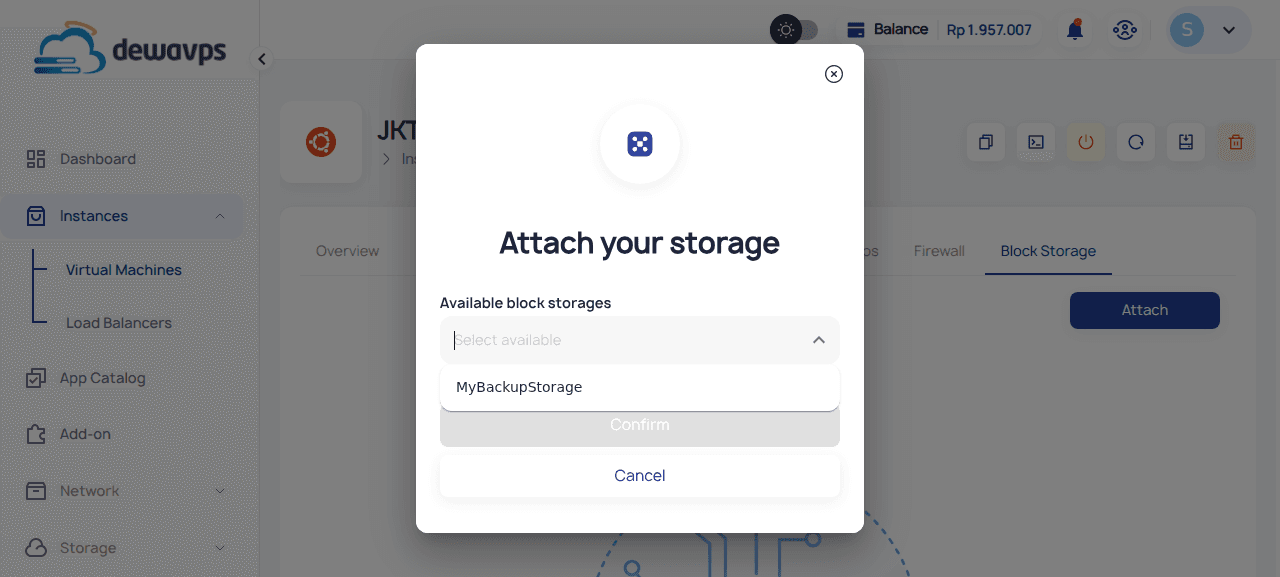
4. Confirm
Select the volume and click Confirm.
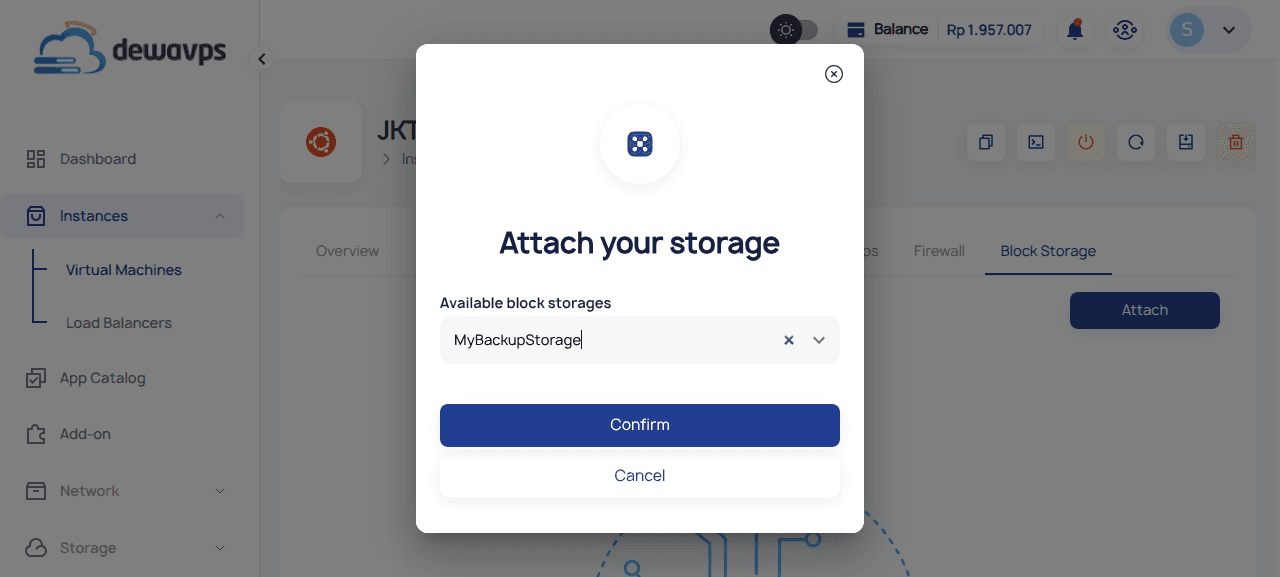
Making the Volume Usable
After attaching, the volume is visible to the OS but needs to be formatted and mounted.
1. Identify the Device
lsblkLook for a new device matching the volume size (e.g., /dev/sdb).
2. Create Filesystem
sudo mkfs.ext4 /dev/sdb3. Mount the Volume
sudo mkdir /mnt/data
sudo mount /dev/sdb /mnt/data
4. Persistent Mount (Optional)
Add to /etc/fstab:
UUID=your-uuid /mnt/data ext4 defaults,nofail 0 0Get UUID with:
sudo blkid /dev/sdbDetaching
Before detaching:
- Unmount the volume:
sudo umount /mnt/data - Go to Block Storage tab in the Instance detail page
- Click Detach