

Configure Instance Firewalls
DewaVPS Cloud Firewalls provide network-level security by controlling traffic to and from your Instances before it reaches the operating system.
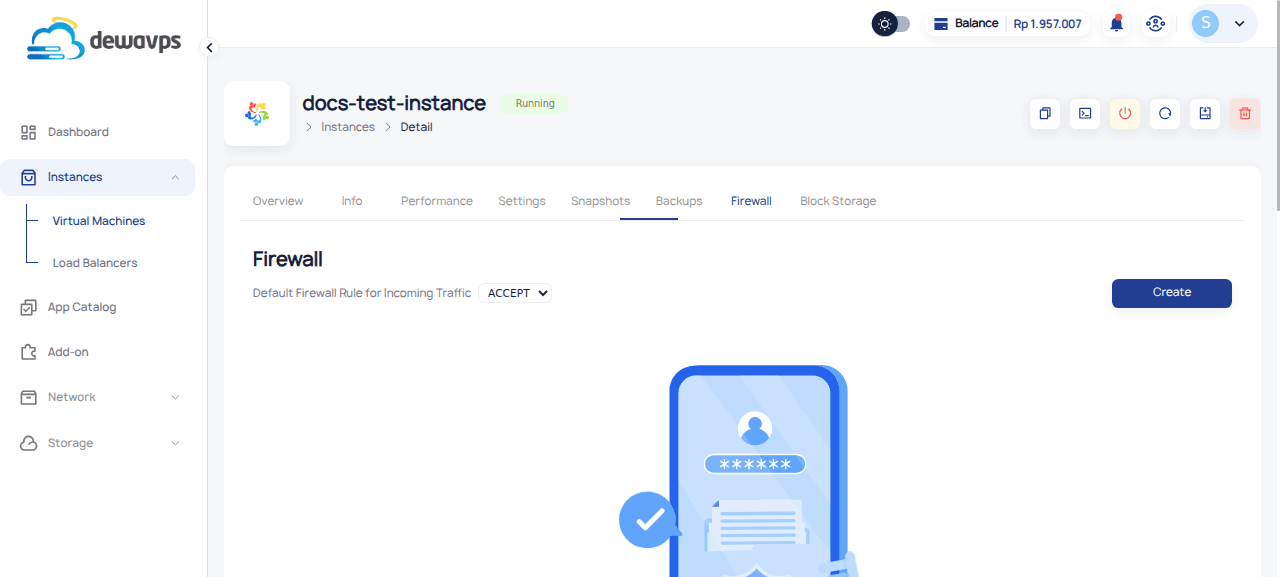
Accessing Firewall Settings
- Navigate to Instances → Virtual Machines.
- Click on the Instance name.
- Select the Firewall tab.
Setting Default Policy
Choose the baseline behavior for incoming traffic:
- ACCEPT: Allow all by default, block specific traffic (less secure)
- DROP: Block all by default, allow specific traffic (more secure, recommended)
Adding Firewall Rules
1. Click Create
Click the Create button in the Firewall section.
2. Fill the Form
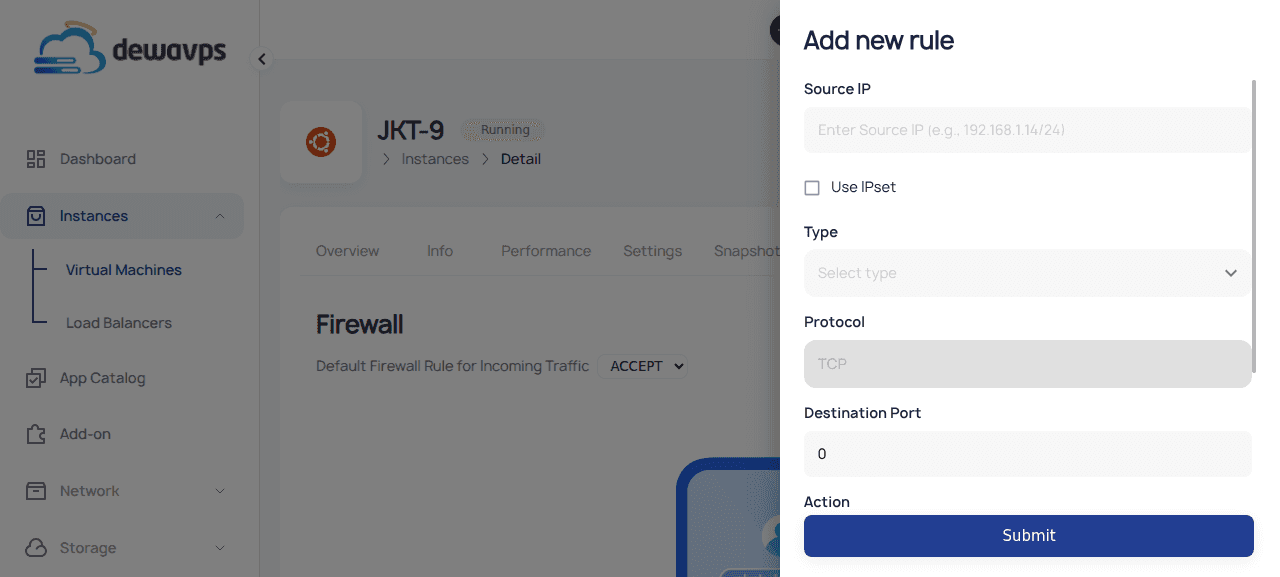
| Field | Description |
|---|---|
| Source IP | IP address or CIDR range (e.g., 192.168.1.0/24) |
| Use IPset | Toggle to use a pre-defined IP List |
| Type | Preset service type or Custom |
| Protocol | TCP or UDP (auto-filled for presets) |
| Port | Port number or range |
| Action | ACCEPT or DROP |
| Description | Note explaining the rule purpose |
3. Select Type
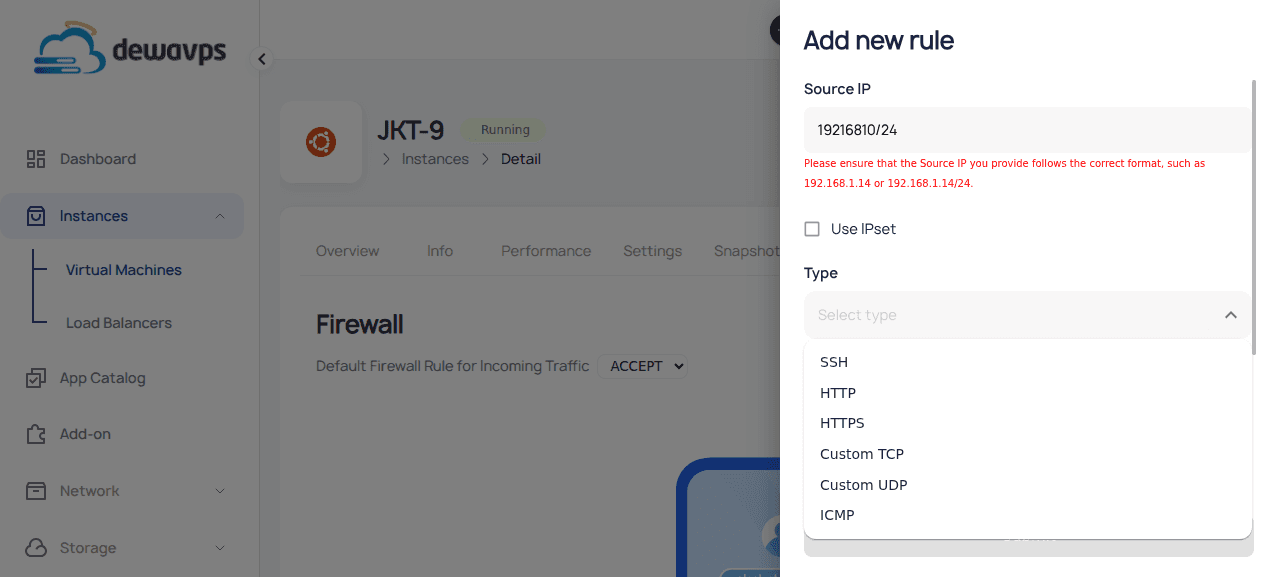
Available presets:
- SSH — Port 22
- HTTP — Port 80
- HTTPS — Port 443
- Custom TCP — Custom TCP port
- Custom UDP — Custom UDP port
- ICMP — Ping
4. Select Action
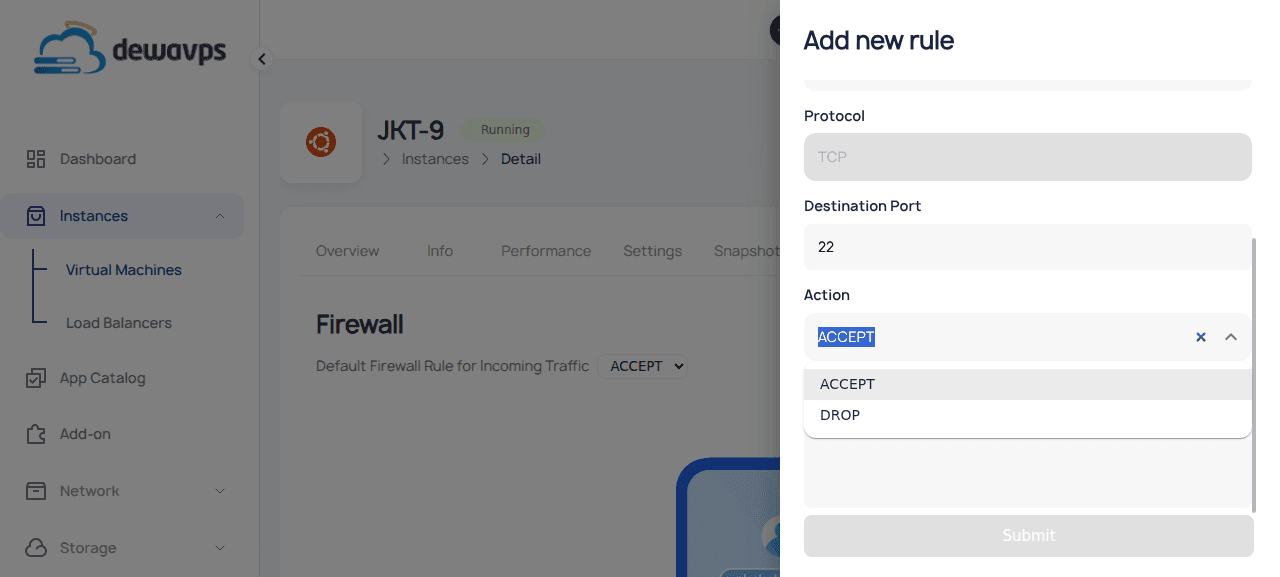
- ACCEPT — Allow the traffic
- DROP — Block the traffic silently
5. Submit
Click Submit to create the rule.
Example: Allow SSH from Office Network
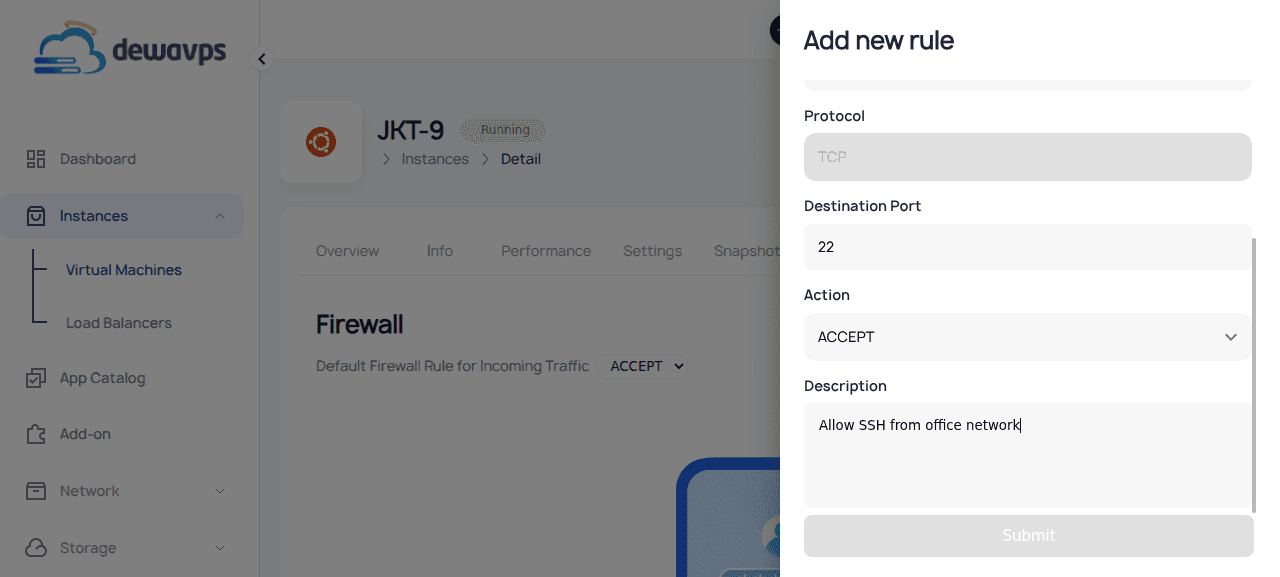
| Field | Value |
|---|---|
| Source IP | 192.168.1.0/24 |
| Type | SSH |
| Port | 22 (auto-filled) |
| Action | ACCEPT |
| Description | Allow SSH from office network |
Managing IP Lists
IP Lists allow you to group IP addresses for easier management.
Creating an IP List
- Click Create in the IP List section.
- Enter a name and optional description.
- Add IP addresses or CIDR ranges.
Using IP Lists in Rules
Check Use IPset and enter the IP List name in the Source IP field.
Managing Rules
- Edit: Click the edit icon to modify a rule
- Disable/Enable: Toggle the switch to temporarily disable a rule
- Delete: Click the delete icon to permanently remove a rule