

Reinstall Instance
Reinstalling an Instance wipes the disk entirely and replaces it with a fresh operating system or application image. This is useful when:
- You suspect your Instance has been compromised
- You've lost access (forgotten password, SSH key issues)
- You want to switch to a different OS version
- You need a completely clean state
Why Reinstall vs Delete?
Reinstalling keeps your IP address. When you delete an Instance, its IP is released and you'll get a different one when creating a new Instance.
Warning: All data on the Instance's disk will be permanently erased. Ensure you have backups before proceeding.
Steps to Reinstall
1. Access Reinstall
- Navigate to Instances → Virtual Machines.
- Click on the Instance name.
- Click the Reinstall icon in the overview tab.
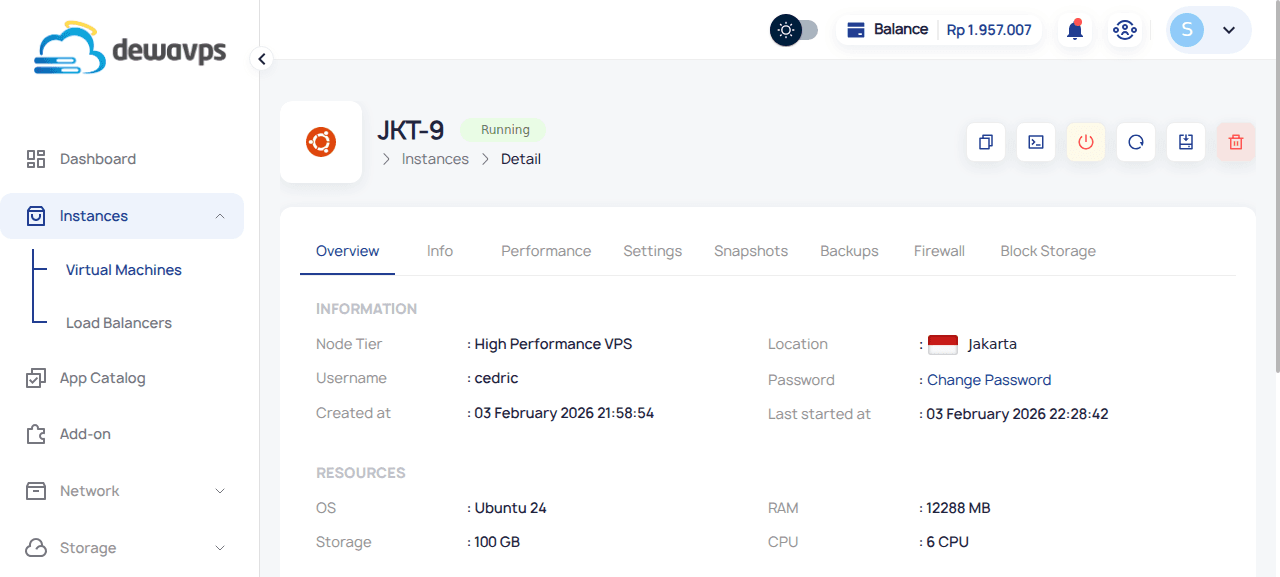
2. Choose OS or Application
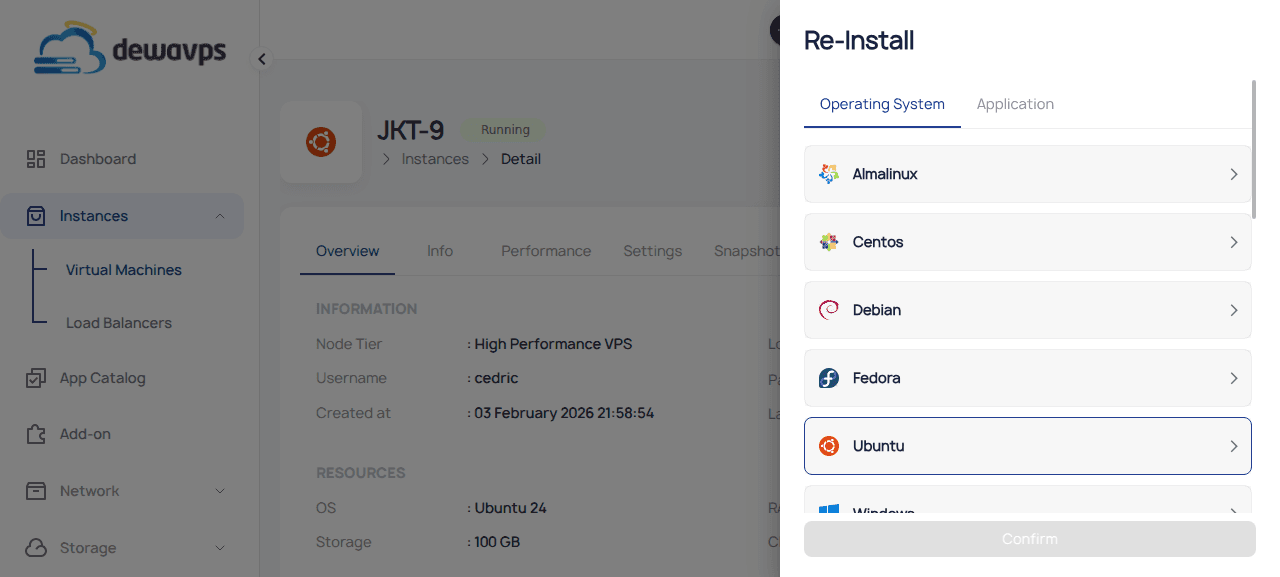
Select the desired image from the available options:
- Operating System tab: Almalinux, Ubuntu, Debian, CentOS, Fedora, Windows, etc.
- Application tab: Pre-configured applications like Docker, WordPress, etc.
3. Set Credentials
Enter a new username and new strong password for accessing the Instance after reinstall.
Note: The old credentials will no longer work.
4. Confirm
Click Confirm to start the reinstall process. This typically takes a few minutes.
Post-Reinstall: SSH Host Key Change
After reinstalling, the Instance generates a new SSH host key. When connecting from a computer that previously connected to this Instance, you'll see a warning:
WARNING: REMOTE HOST IDENTIFICATION HAS CHANGED!To resolve this, remove the old key:
ssh-keygen -f "~/.ssh/known_hosts" -R your_instance_ipThen reconnect and accept the new key.