
Resize Disk on Linux Instance
After upgrading your Instance's storage from the DewaVPS control panel, the disk size will be expanded automatically. This guide walks you through the full process.
Step 1: Stop Your Instance
Important: The Instance must be in a Stopped state before you can upgrade resources.
From the Instance detail page, click the Shutdown button.
Step 2: Upgrade Storage from Control Panel
- Go to Instances → Virtual Machines and open your Instance.
- Navigate to the Settings tab.
- Click Change Resource.
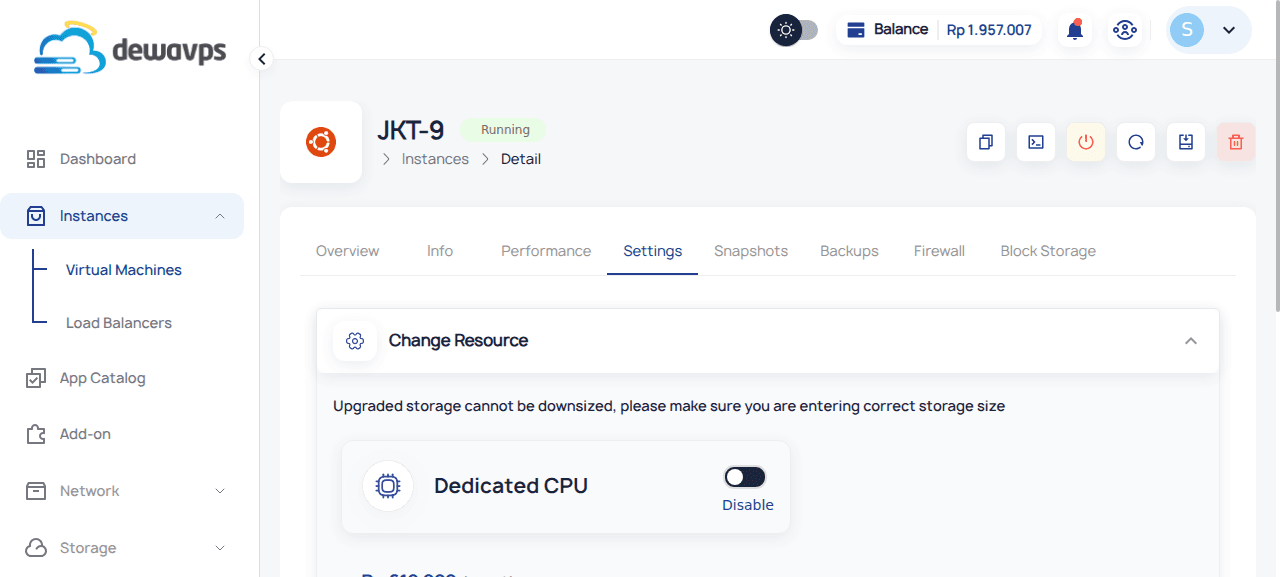
- Adjust the Disk slider to your desired storage size.
- Click Upgrade.
Warning: Once the disk has been upgraded, it cannot be downgraded. Make sure you enter the correct storage size before confirming.
Step 3: Start Your Instance and Verify
Start your Instance again, then SSH into it and run:
lsblkYou should see the updated disk size reflected automatically. For example, after upgrading from 20 GB to 280 GB:
Before upgrade:
NAME    MAJ:MIN RM  SIZE RO TYPE MOUNTPOINTS
vda     253:0    0   20G  0 disk
├─vda1  253:1    0   19G  0 part /
├─vda14 253:14   0    4M  0 part
├─vda15 253:15   0  106M  0 part /boot/efi
└─vda16 259:0    0  913M  0 part /boot
After upgrade:
NAME    MAJ:MIN RM  SIZE RO TYPE MOUNTPOINTS
vda     253:0    0  280G  0 disk
├─vda1  253:1    0  279G  0 part /
├─vda14 253:14   0    4M  0 part
├─vda15 253:15   0  106M  0 part /boot/efi
└─vda16 259:0    0  913M  0 part /boot
The root partition (vda1) is automatically expanded and mounted at / — no manual resizing required.
Manual Filesystem Expansion (If Needed)
If the partition doesn't auto-expand, you can manually expand it:
1. Identify the Partition
lsblk2. Expand the Partition
sudo growpart /dev/vda 13. Resize the Filesystem
For ext4:
sudo resize2fs /dev/vda1For XFS:
sudo xfs_growfs /4. Verify
df -h