

Create Access Key
Access Keys allow you to authenticate with the Object Storage S3-compatible API. You need an Access Key to programmatically interact with your buckets.
Steps to Create an Access Key
-
Log in to your DewaVPS control panel.
-
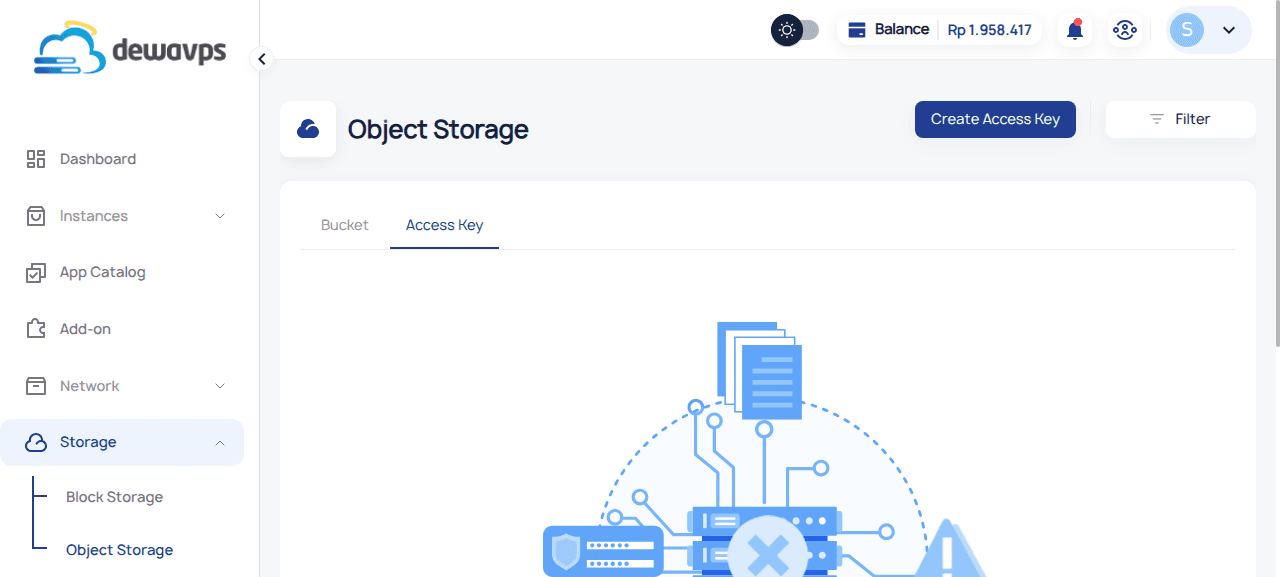
Navigate to Storage → Object Storage → Access Key tab.
-
Click the Create Access Key button.
-
Fill in the required details:
- Name: Enter a descriptive name (e.g.,
S3 Backup Key). - Location: Select the datacenter.
- Expiration: Set an optional expiration date.
- Bucket: Select which bucket(s) this key can access.
- ACL: Choose the permission level for each bucket.
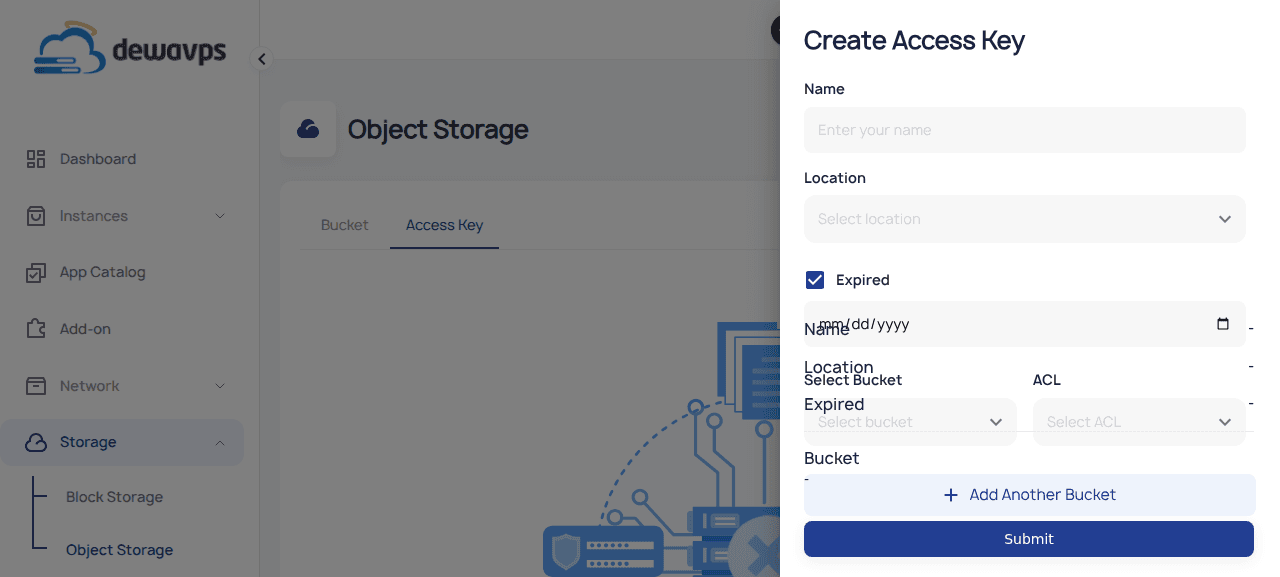
ACL Description Private Full read/write access Read Read-only access Read-Write Read and write access - Name: Enter a descriptive name (e.g.,
-
Click Add Another Bucket to grant access to additional buckets.
-
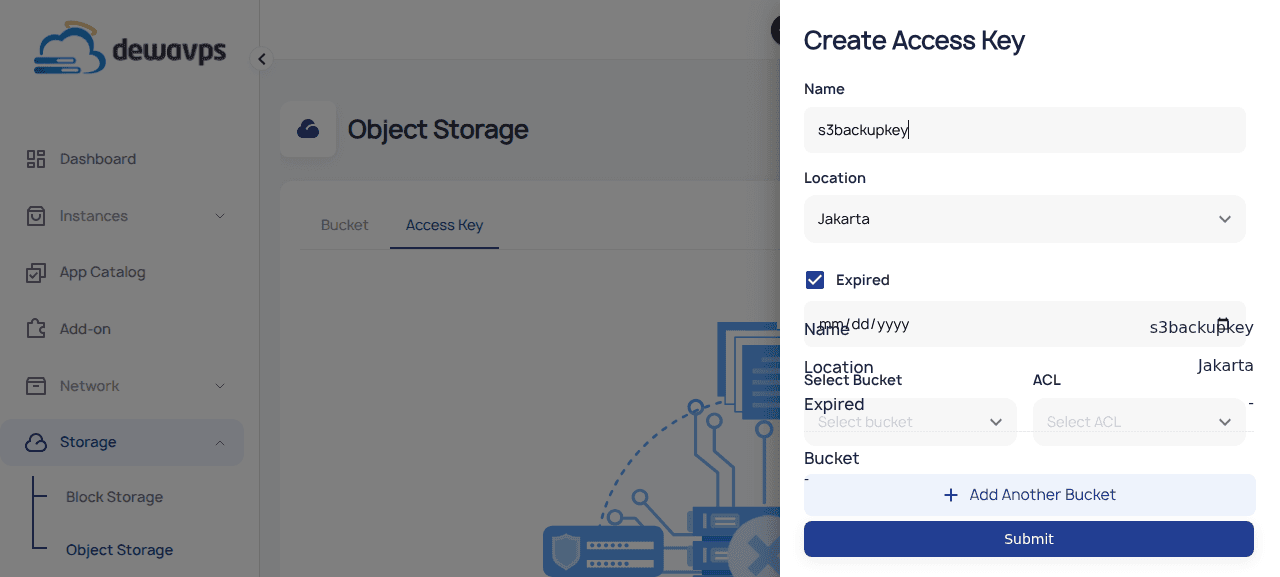
Click Submit to create the access key.
-
Copy the Access Key and Secret Key immediately — they will only be shown once!
Using Your Access Key
Configure your S3 client with the credentials:
# AWS CLI configuration
aws configure set aws_access_key_id YOUR_ACCESS_KEY
aws configure set aws_secret_access_key YOUR_SECRET_KEY
aws configure set default.region jkt

# List buckets
aws s3 ls --endpoint-url https://object.jkt.dewavps.com

# Upload file
aws s3 cp file.txt s3://my-backups/ --endpoint-url https://object.jkt.dewavps.com
Security Note: Treat your Access Key and Secret Key like passwords. Never commit them to version control or share them publicly.